The Charges tab in Granot is where a quote becomes a number. New reps are often shown it quickly and told to "just fill it in." This guide slows it down and explains what each part does, so you know why the price is what it is. Labels and extra lines vary by company setup, so use this as a map, and check your own screen against it.
Start with the facts about the move
Before any price appears, the screen depends on a few facts about the job:
- The inventory. On the first call the customer gives you a detailed inventory list. That list gives you the total volume of the move, and every number below starts from it.
- Pickup date. The date drives how the job is priced. Weekend, month end, holiday and summer dates are often priced differently.
- Distance. The distance between the two ends of the move affects the rate.
- Origin and destination. Where the move starts and ends. Some companies apply state specific rules or discounts.
If any of these is wrong, everything below it will be wrong too.
The core price
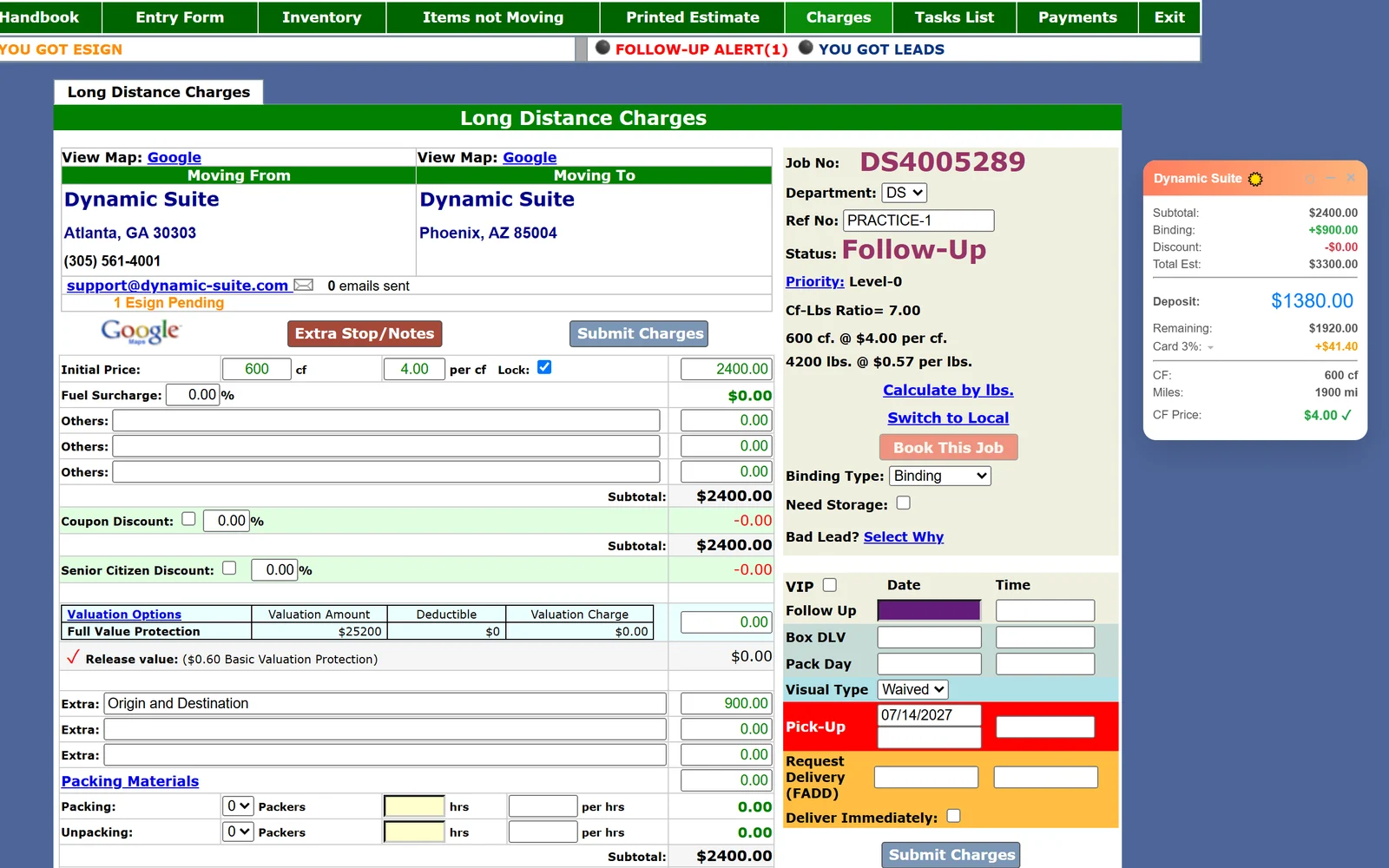
- Cubic feet (CF). How much the customer is moving, measured by volume. It comes from the inventory list.
- Price per CF. The rate for those cubic feet. It is not one fixed number. The volume, the distance and the time of year decide it, and your company sets the details.
- Subtotal. Roughly CF multiplied by the rate, before the extra lines are applied.
Worked example (made up numbers). A 600 CF move at an example rate of $4.00 per CF gives a subtotal of $2,400. If the date is a weekend and your company adds a weekend surcharge, the rate changes and so does the subtotal. The example is only to show the idea. Your rates are your own.
Extra lines
Below the core price sit lines that add or take away money. Your company chooses which ones it uses. Common ideas are:
- Packing. Boxes and packing services.
- Storage. Free or paid storage for a period.
- Discounts. For example a discount tied to the customer's state, or a promotion.
- Binding line. If the estimate is binding, there may be a line that reflects it.
Every extra line is a chance to forget something. If the customer mentions packing on the phone, add the line right away.
Binding or non-binding
The screen reflects whether the estimate is binding or non-binding. Your company has a policy and the rules for non-binding estimates vary, so learn yours before the first call. See Binding vs Non-Binding Moving Estimates Explained.
Payments
The charges screen shows what the customer has paid so far, and the Payments screen is where you enter a payment. When you take a deposit:
- Start from the subtotal on the screen.
- Say the deposit and the balance together.
- Enter the payment and tick the deposit box.
- Return to the Charges tab and check that the numbers now agree.
Notes
Use the remarks or notes to record the price quoted, what was included and what the customer asked for. It takes ten seconds and it saves a lot of arguments later.
A quick pre-send checklist
- Is the pickup date right?
- Is the distance right?
- Is the rate right for that date and distance?
- Did I add every extra the customer mentioned?
- Does the deposit come from the live subtotal?
- Did I leave a note?
Making this screen faster
Everything on this page can be done by hand. The parts that take time are the repeating ones: working out the rate, adding the usual lines and entering the deposit. A calculator on the screen, such as Dynamic Suite PRO, reads the cubic feet and distance, shows the CF price and deposit, and fills them in with one click. Read more in Speed Up Your Granot Charges Page.
More on Granot: Granot CRM for moving companies, Granot alternatives and add-ons and Granot moving software reviews.
Frequently asked questions
What is CF in Granot?
Cubic feet, the volume of the move. It is the base for most pricing.
Why does the price per CF change?
Usually because of distance and date. Your company sets the rules.
Where do I enter a deposit?
On the Payments screen for the job, then check the Charges tab.
Why did my quote come out low?
The most common causes are a missed surcharge date, a forgotten extra line and a wrong distance.
Price faster on every Granot job.
Dynamic Suite PRO works out the CF price and the deposit on the Granot charges screen and fills them in with one click. Try it free for 14 days.
Install free on Chrome